 Pong VPN
Auto-connect
Enable connection on launch to skip the same routine every time.
Our servers or your own configuration. Pong VPN makes connecting simple and keeps you in control.
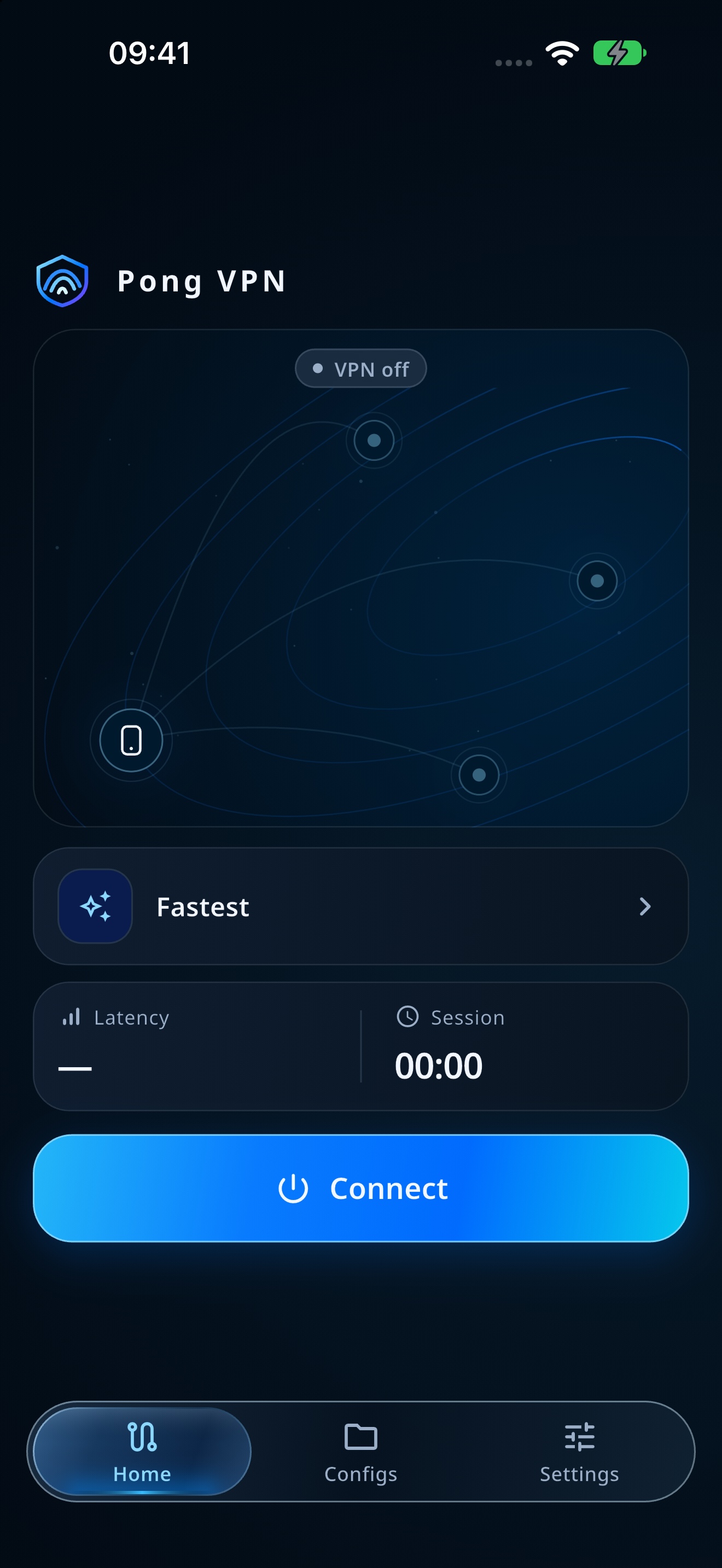
Start with a ready-to-use connection or make it your own. The choice is always yours.
Choose “Our servers” and connect. The app retrieves the service configuration and automatically selects a server.
Upload a JSON file, paste a configuration or a VLESS link. Name your profile and save it to your library.
FormatJSON / VLESS
ConnectionYour rules
Enable connection on launch to skip the same routine every time.
Set up reconnection after an interruption. The app shows you what is happening with your connection.
Additional traffic control when the VPN connection drops. Enable it in the app settings.
What the app needs to work, what stays on your device and how to delete your account — all in one place.
Privacy PolicyPong VPN infrastructure does not retain IP addresses, browsing history or technical logs.
Saved configurations and access tokens are kept in secure iOS storage.
Contact support to delete your registration record and associated data.
The app registers the installation and saves your ID. No username or password to create.
Use our servers or add your own configuration in “Configs”.
The first time you connect, allow iOS to add a VPN configuration. Then manage your connection from the home screen.
Yes. Upload a JSON file, paste the configuration text or a VLESS link. When using the configuration's rules, you can select a specific server from it. You need a working server to connect.
No. The app automatically registers the installation on launch. Your ID appears in Settings. If the network is unavailable, retry registration or continue with your own configurations.
Pong VPN infrastructure does not retain IP addresses, browsing history or technical logs. Registration data is used to provide the service. If you connect to someone else's server with your own configuration, its operator determines how data is handled. See our privacy policy.
English, Russian, Chinese, Spanish, French, German, Persian, Hindi and Arabic. Choose your language in the app settings.
Email highlightappsSupport@gmail.com. For connection issues, include your device model and iOS and app versions. To delete your account, send your ID from Settings in a private email. Do not send passwords or access keys.